Remote Access, File Transfer & PowerShell Task Automation (Windows 11)
1. Purpose
To provide a standardized process for remote access, file transfer, PowerShell automation, and monitoring for a limited 7-day execution.
2. Scope
Applicable for IT Service Desk / Operations teams managing Windows 11 systems.
3. Tools Required
TeamViewer, Windows Task Scheduler, PowerShell, Datadog
4. Procedure
4.1 Remote Access (TeamViewer)
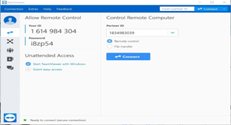
- Open TeamViewer
- Enter Partner ID & Password
- Connect to remote system
4.2 File Transfer
- Copy script file
- Paste into C:\Scripts\
- Verify transfer
4.3 PowerShell Script
- Ensure script path: C:\Scripts\script.ps1
- Test manually using PowerShell
4.4 Task Scheduler Setup
- Open Task Scheduler
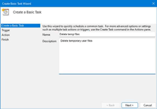
- Create Basic Task: Run PS Script Daily
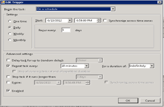
- Trigger: Daily at 8:00 PM
- Action:
Program: powershell.exe
Arguments: -ExecutionPolicy Bypass -File "C:\Scripts\script.ps1"
4.5 Set Expiry (7 Days)
- Go to Task Properties → Triggers
- Click Edit
- Enable Expire
- Set End Date = Start Date + 7 days
4.6 Monitoring
- Check logs in Datadog
- Validate execution and errors
5. Validation
Ensure script runs daily at 8 PM and stops after 7 days.