TeamViewer – Installation Procedure
Overview
This Knowledge Base article describes the standardized procedure to install and configure TeamViewer Host on TrueScan systems using the Managed Devices model to enable secure remote access and centralized management.
Purpose
To provide a consistent and controlled process for installing TeamViewer Host, adding the device to TeamViewer Managed Devices, organizing it under the appropriate device group, and applying the required TeamViewer policy.
Scope
This procedure applies to all technicians and Service Desk engineers installing TeamViewer on TrueScan systems in production or testing environments.
Prerequisites
- Administrator access on the system
- Approved TeamViewer Host installer
- Valid TeamViewer corporate login credentials
- Stable internet connection
Important Notes
- Use TeamViewer Host (Do NOT install the full TeamViewer client).
- Device Groups are NOT the same as Groups.
- Ensure installation complies with internal security policies.
- Do not configure personal/non-commercial usage.
Procedure – Installation and Configuration
Step 1: Rename the Computer
- Open Windows Search.
2. Navigate to 'About This PC'.
3. Click 'Rename This PC'.
4. Rename using approved naming convention (e.g., TrueScan-1-3-100).
5. Restart the PC after renaming.
Step 2: Install TeamViewer Host
- Download TeamViewer Host from the approved source.
2. Run the installer.
3. Complete installation using default settings.
Step 3: Sign In and Trust Device
- Open TeamViewer Host.
2. Click the Settings (gear icon).
3. Select 'Manage This Device'.
4. Sign in using corporate TeamViewer credentials.
5. Check the registered corporate email inbox.
6. Approve and trust the device when prompted.
7. Sign in again using corporate TeamViewer credentials to complete device registration.
Step 4: Verify Device in Managed Devices
- Access the TeamViewer Management Console.
2. Confirm the device appears under 'All Managed Devices'.
3. Verify that the device is properly registered under the corporate account.
Step 5: Move to TrueScan Hosts Device Group
- From the technician console, locate the device in 'All Managed Devices'.
2. Drag and move the device to the 'TrueScan Hosts' device group.
3. Confirm the device is correctly listed under the appropriate group.
Step 6: Apply TeamViewer Policy (If Required)
After Step 5, please add the following steps (these were not necessary on the previous machine, but needed on a machine today so this should be verified):
- Right click on device and go to "Edit".
- Select "TeamViewer policies" then "Inherit from group" -> TrueScan Policies.
Note: This step was not required on the previous machine but must now be verified and applied where necessary.
TeamViewer Policy Selection
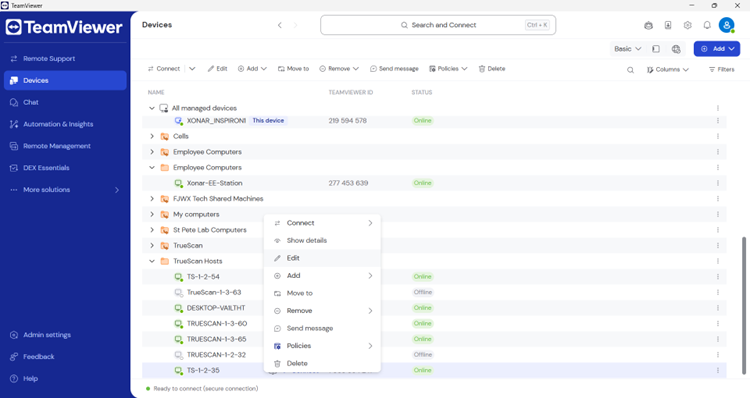
Right-Click → Edit Option
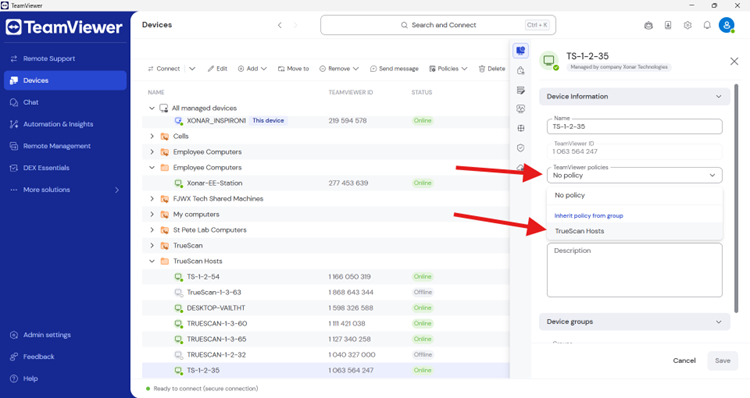
Verification
- Confirm device appears in TeamViewer Management Console.
- Confirm device is located in 'TrueScan Hosts' device group.
- Confirm correct TeamViewer policy is applied (TrueScan Policies).
- Test remote connectivity from technician console.
Documentation
Update the associated ticket with:
- Installation date
- TeamViewer Host version
- Confirmation that device was added to Managed Devices
- Confirmation that device was moved to 'TrueScan Hosts' group
- Confirmation that 'TrueScan Policies' was verified/applied
- Any observations or issues
Troubleshooting
- Device not appearing in console: Verify login and internet connectivity.
- Unable to trust device: Check corporate email and spam folder.
- Device not movable to group: Verify appropriate permissions.
- Policy not applying: Confirm correct group selection and permissions.