1. Purpose
This SOP explains how to update the Date of Delivery for each machine in XONAR Insight and add the corresponding Proof of Delivery (POD) link to the machine's Notes section.
2. Information Required
- Machine/device list to be updated.
- Delivery date associated with each machine.
- Proof of Delivery (POD) link for each machine.
- Access to XONAR Insight with permission to edit device records.
3. Procedure
1. Open the device record: Go to Insight and search for the machine using the device/machine number. Verify that the correct machine record is open.
2. Edit the device: Click EDIT DEVICE on the device record.
3. Update delivery date: Locate Date of Delivery and enter the delivery date associated with that specific machine.
4. Save the update: Save the device record and confirm that the correct delivery date appears on the Summary page.
5. Open Notes: Scroll to the Notes section of the machine record.
6. Add the POD: Click ADD in the Notes section and enter the POD using the required format: POD: "link".
7. Save the note: Save the note and confirm that the POD entry is visible in the Notes section.
8. Repeat: Complete the same steps for every machine in the provided list.
4. Required POD Format
Use exactly: POD: "link"
Example: POD: "https://drive.google.com/file/d/XXXXXXXX/view"
5. Screenshot Reference
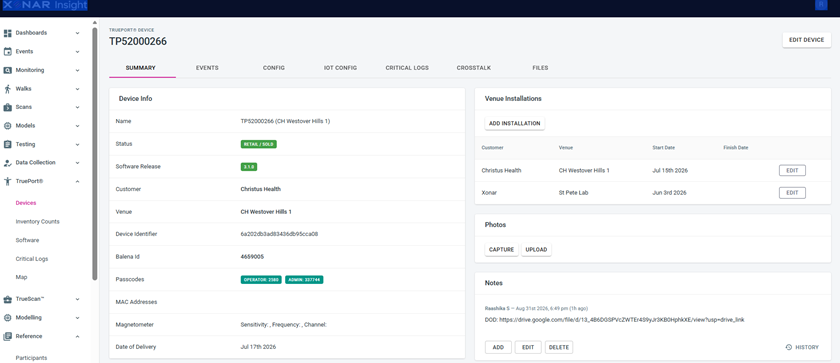
Use the screenshot below as a visual reference for the device Summary, Edit Device, Date of Delivery, and Notes areas in Insight.
6. Quality Check
☐ Every machine from the source list has been updated.
☐ The Date of Delivery matches the date associated with the machine.
☐ The POD link belongs to the same machine.
☐ The Notes entry is saved in the format POD: "link".
☐ The updated delivery date is visible on the Summary page.
☐ No delivery date or POD was copied from another machine.
7. Exception Handling
If the delivery date or POD link is missing, incorrect, or unclear, do not guess or enter an assumed value. Flag the machine for confirmation before making the update.
8. Expected Result
Each machine in Insight should have the correct Date of Delivery and a corresponding POD reference in the Notes section. This provides a consistent record and audit trail for machine deliveries.